How to Set Up Your Working Hours and Withdrawal Account
This section explains how to configure your business operating hours and set up your withdrawal account to receive payments from your store.
1. How to Set Up Working Hours
Step 1: Access the Order Reception Hours Section
On the left sidebar, click on Business Settings, then select Order Reception Hours.
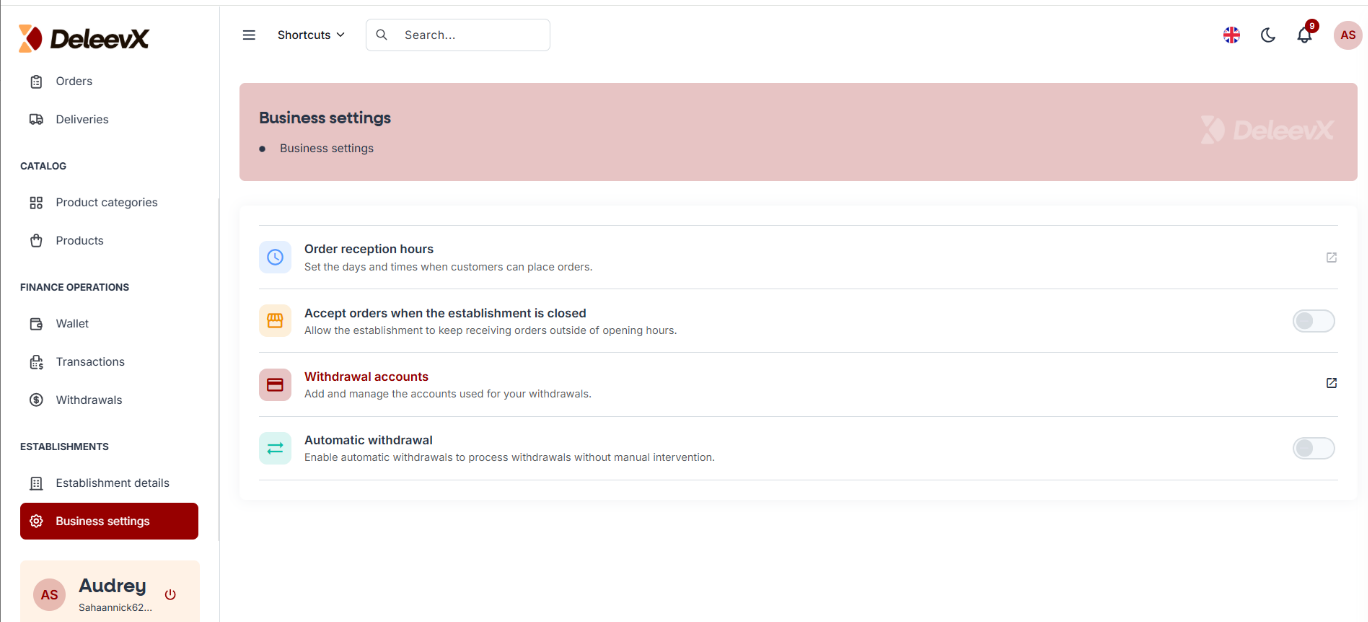
Step 2: Configure Your Working Hours
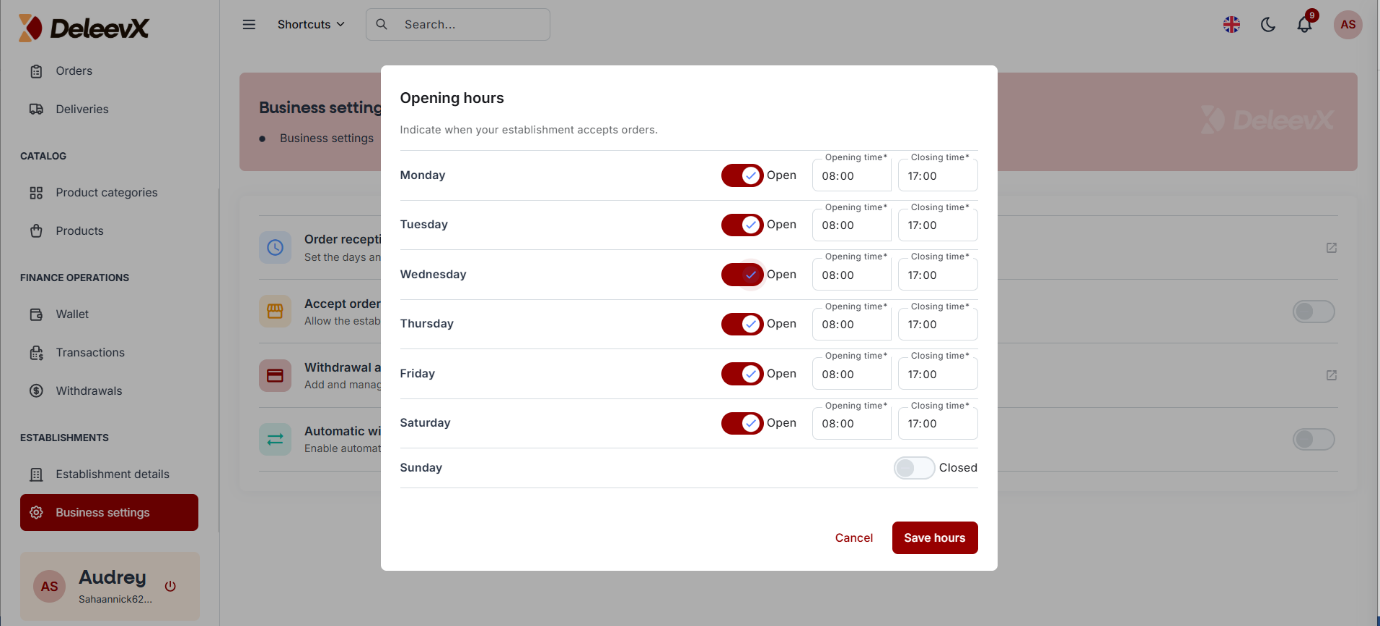
Clicking on Order Reception Hours will display a page where you can set up your business operating hours.
Select the days and hours during which you will be available to receive and process orders.
Once you have completed the setup, click the Save Hours button.
Step 3: Verify Your Working Hours
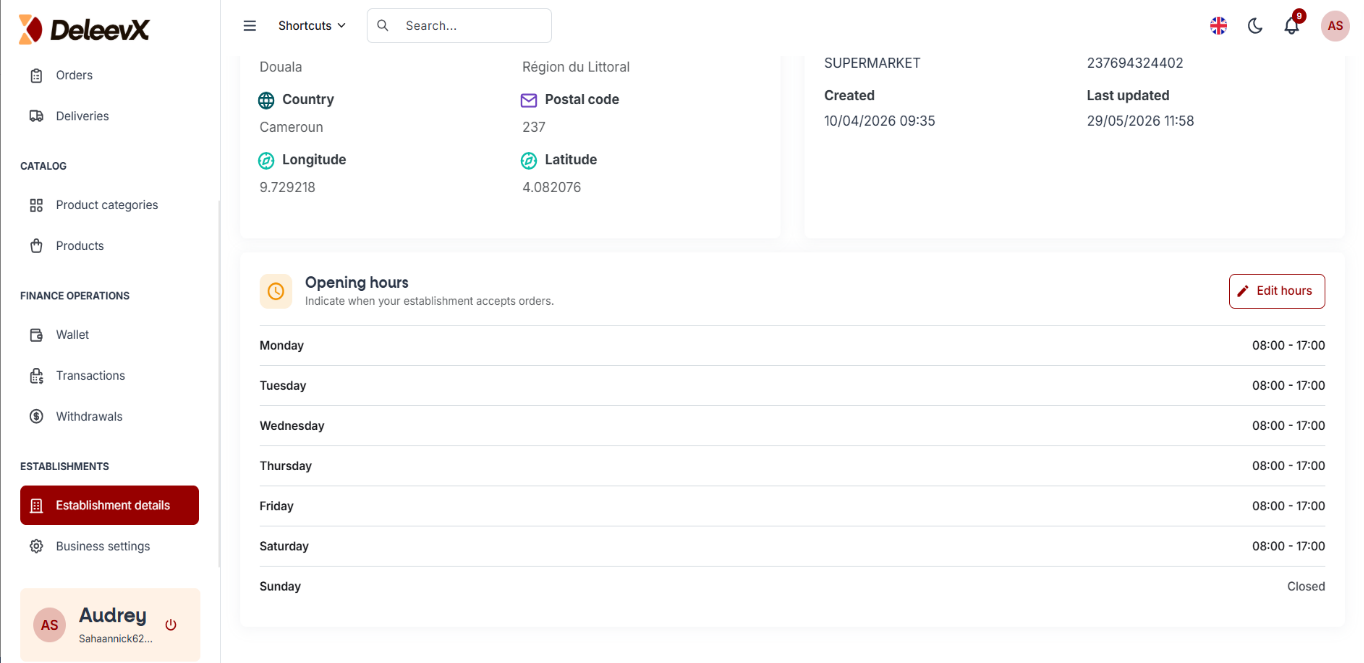
To confirm that your working hours have been successfully saved, click on Establishment Details from the left sidebar.
The page will display the working hours you configured.
2. How to Set Up Your Withdrawal Account
There are two withdrawal methods available:
- Manual Withdrawal
- Automatic Withdrawal
i. Manual Withdrawal Method
Step 1: Access the Withdrawal Accounts Section
Within the Business Settings menu, select Withdrawal Accounts.
This is where you can configure the account that will receive your withdrawals.
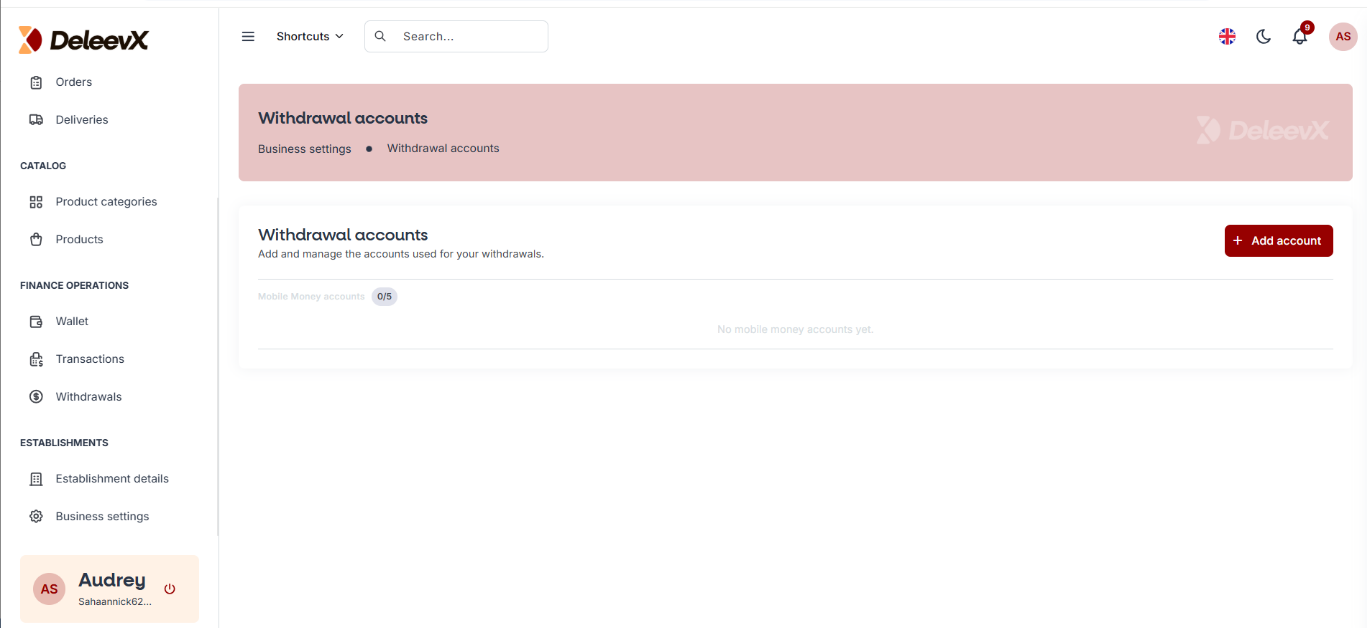
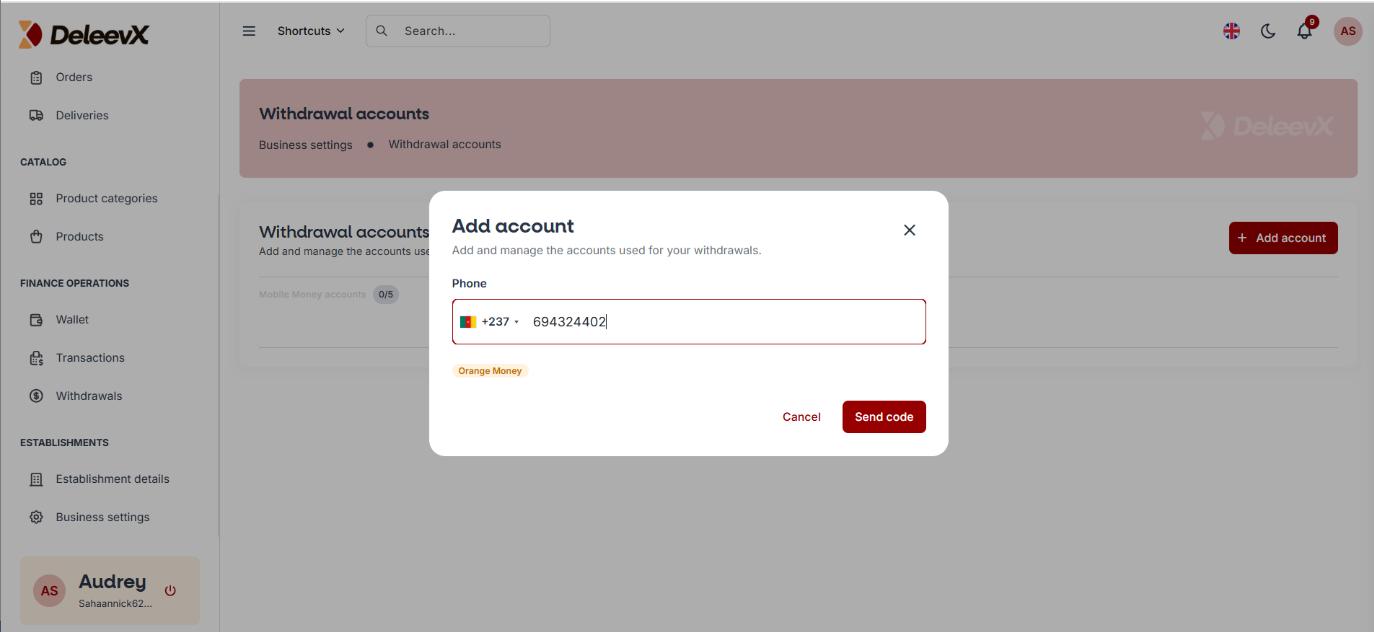
Step 2: Add a Withdrawal Account
Click the Add Account button.
Enter the phone number or withdrawal account number of your choice, then click Send Code.
Step 3: Verify Your Account
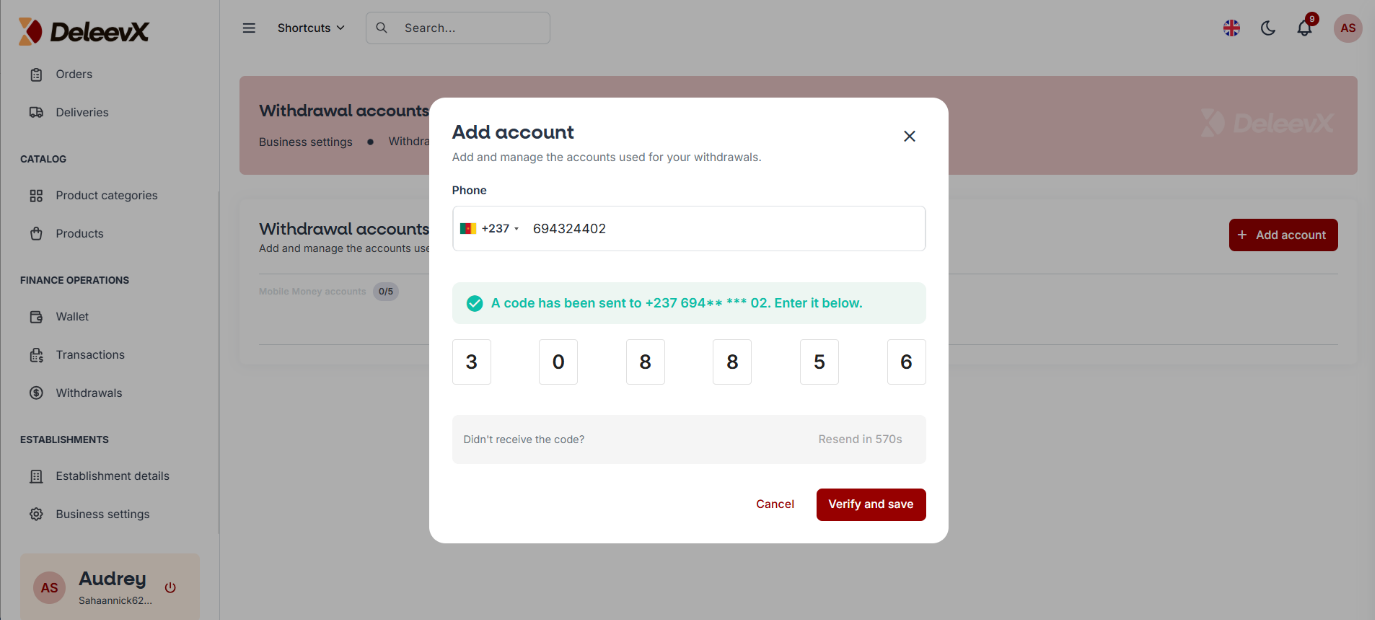
A verification code will be sent to the number you provided.
Enter the verification code and click the Verify and Save button.
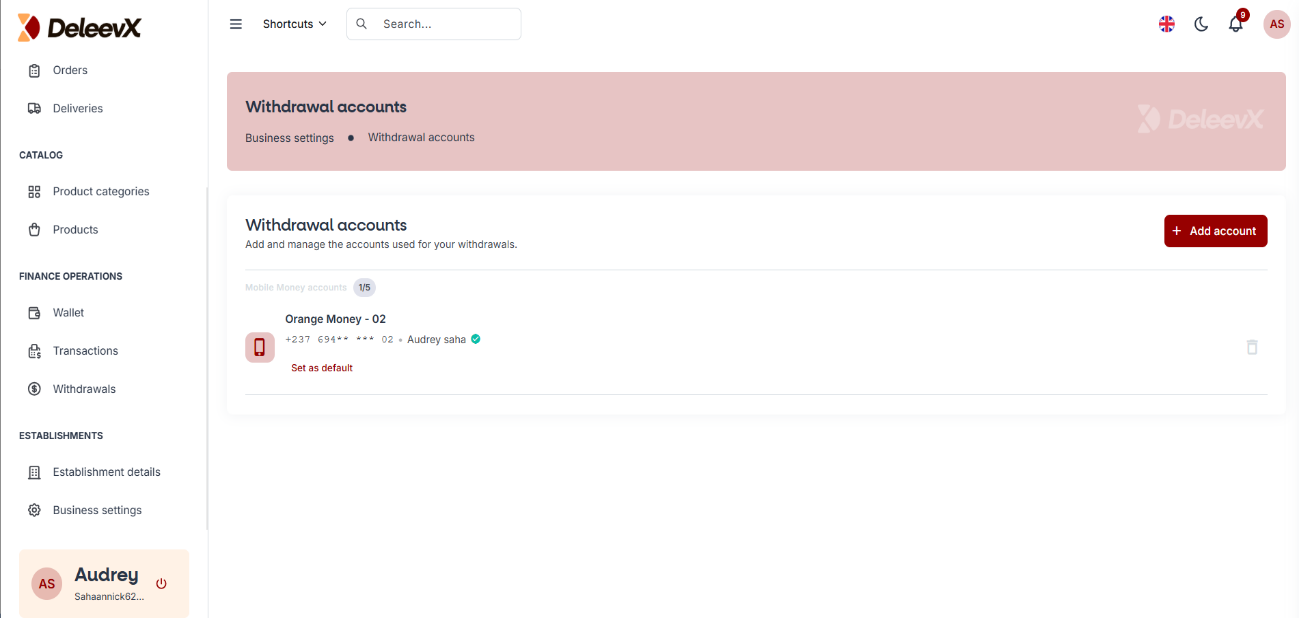
Step 4: Withdrawal Account Successfully Added
Once verification is completed, your withdrawal account will be successfully saved and displayed in your account settings.
ii. Automatic Withdrawal Method
The Automatic Withdrawal method allows your earnings to be transferred automatically to your withdrawal account without requiring manual requests each time.
To enable this feature, simply activate the Automatic Withdrawal toggle button as shown below.
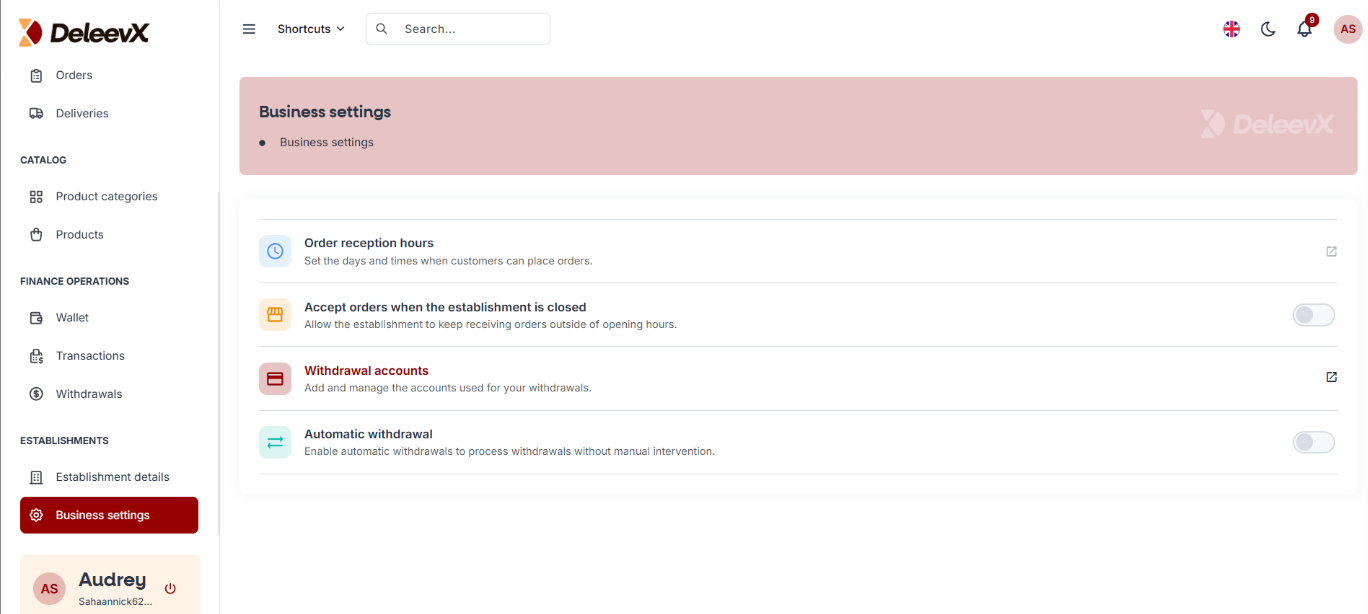
Note: Once Automatic Withdrawal is enabled, eligible funds will be transferred automatically according to the platform's withdrawal schedule.
Congratulations!
You have successfully:
- Configured your business working hours.
- Added a withdrawal account.
- Learned how to use both Manual and Automatic Withdrawal methods.
Your store is now ready to receive orders and payments efficiently on DeleevX.